
Live talks, like Clubhouse, with a chat beside them
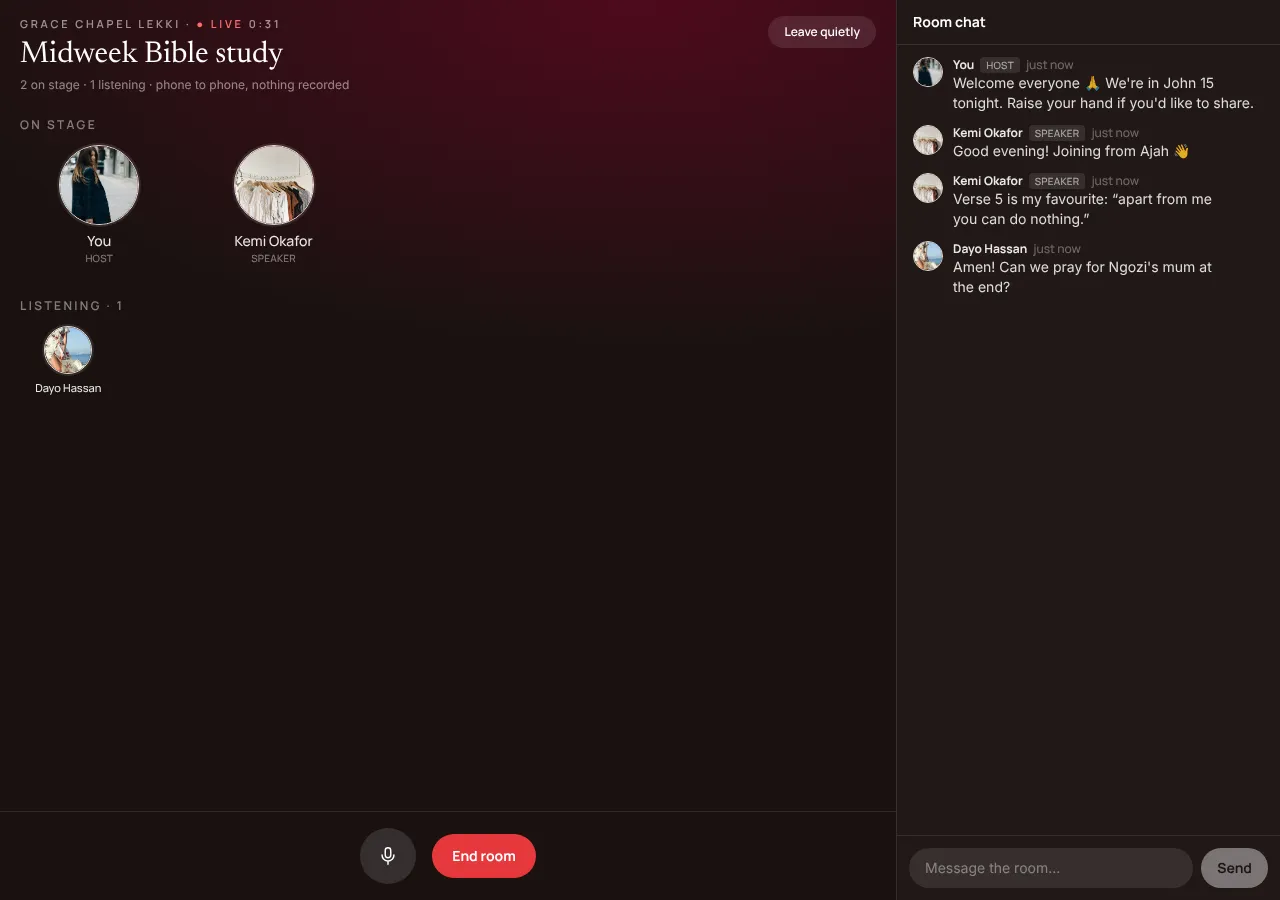
Go live with your members: a Bible study, a Q&A with the principal, a town hall. The host brings up to 4 people on stage to speak; everyone else listens, raises a hand to ask a question, and types in the room's chat.
At a glance
- Who hosts
- The owner, admins and moderators
- On stage
- The host and up to 4 speakers at a time
- Listening
- Up to 500 a room, through our relay
- Room chat
- Everyone in the room, up to 500 characters a message
- Who can join
- Members of the community
- Video
- The host can turn video on and off (15 video minutes a live); a poster shows while it's off
- Data saver
- Audio only: never downloads the video (on by itself on slow connections)
- Recording
- None: nothing is recorded or kept
Hosting a room
- On the community's Home, tap + Start a room, give it a name (Sunday Q&A, Midweek Bible study) and Go live. Members see it at the top of Home with Join.
- The stage shows empty chairs with a + on each. The host picks a stage mode and can change it during the live: Solo (only the host), Approve (people ask with +, and the host or a moderator approves) or Open (+ takes the seat at once). Up to 4 speakers at a time besides the host.
- The host can invite anyone listening on stage (they accept or decline), and name moderators for the live, ticking what each may do (Basic, Full, or one by one): approve requests, invite, bring speakers down, turn mics off, remove chat messages, and more. Moderators never act on the host.
- A green ring shows who's talking. The host's mic button mutes and unmutes. End room ends it for everyone; the host leaving ends it too.
- A member with a publishing account can also host a paid live of their own, with tickets (Paid lives): the same room, outside the community, where only ticket holders come in and only the moderators the host names moderate.
Listening and speaking
- Tap Join and you're listening: no camera, no mic until you're brought up.
- On stage, your mic is on; tap Back to listening to step down. Leave quietly to go whenever you like.
The room chat
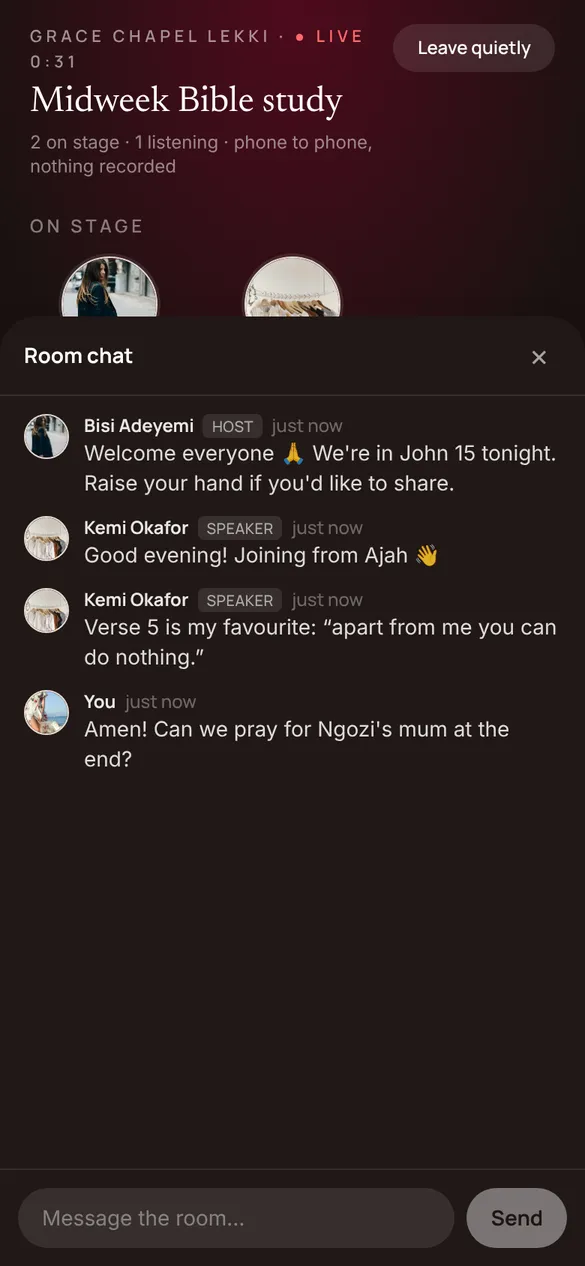
- While a room is on, everyone in it can type: questions for the speakers, prayer points, amens, links.
- On a computer the chat sits beside the room. On a phone, tap 💬 Chat; a red number shows what you missed while it was closed.
- The host and speakers are marked in the chat. The host or a moderator can remove a message. The chat goes when the room ends.
Live: video, the poster and Audio only
- The host picks a poster when they start the room (a picture they upload, their profile picture or the challenge art) and can change it any time. While no camera is on, everyone sees it. A poster is only a picture: it's never sent as video.
- In a room through our relay, the host taps 🎥 Video to turn the camera on and 🎥 Video off to go back to sound, without anyone reconnecting. The host can let speakers turn video on too. Video is kept light: 480p at 24 frames a second.
- Each live has 15 video minutes, and the host sees how many are left. When they're used up, video turns off by itself 30 seconds after the host is told; the room carries on with sound.
- The host gets gentle tips: when listeners fall by 10% within 2 minutes, "Try 2 minutes of video?"; after 3 minutes of video in a row, "Back to audio to keep your video minutes."
- Listeners can tap Audio only to save data: the video isn't downloaded at all. On a slow connection it starts that way, and the choice is remembered on the device.
- If the host offers paid sessions, Book a session stays at the top of the room for everyone listening.
How the sound travels
- Through our relay, run by Cloudflare: the host and each speaker send their microphone once, and everyone in the room hears the stage from the relay. The sound passes through Cloudflare on its way and is never recorded or kept.
- So a room holds up to 500 listeners, and the host's phone carries no more than a speaker's.
The rest of Community
- General →
General is your community's announcement channel. Every member is in it from the day they join. Your admins post; members like, comment and share. It's where Sunday's service times, the outreach report and the harvest notice go.
- Spaces →
Spaces are the topics inside your community where members post too: Prayer requests, Youth fellowship, Announcements, Alumni 2015, Volunteers. Each Space is either public or for members only, and you choose who can post in it.
- Circles →
A Circle is a private group chat inside your community for the few people who work together: the choir, the ushers, the youth leaders, the board. Your admins set it up and choose who's in it. Nobody else sees what's said.
- Events →
Put your community's programme on its Events tab: Sunday service, the workers' meeting, the harvest, an outreach. Members tap Going or Interested, get reminded before it starts, and can add it to their calendar or join it live.